 Student Trove
Week A / Week B alternating timetables
What a fortnightly timetable is, why ordinary planner apps handle it badly, and how to track one without switching your schedule by hand every Monday.
What a Week A / Week B timetable is
A Week A / Week B timetable repeats over a fortnight rather than a single week. The classes you have on a Monday in Week A are not the same as those on a Monday in Week B, and the whole pattern resets every fourteen days.
Institutions adopt it when the curriculum needs more distinct periods than five days provide. Laboratory sessions that run every second week, practicals split across two student groups, elective blocks and tutorial rotations are all easier to schedule across a fortnight. It goes by several names — alternating, biweekly, fortnightly, two-week rotating, or simply A/B weeks — and they all describe the same structure.
Week A — Tuesday
- Chemistry 08:00
- Chemistry Practical 10:00
- Mathematics 14:00
Week B — Tuesday
- Chemistry 08:00
- Physics Practical 10:00
- Mathematics 14:00
The example above is the shape most alternating timetables take in practice. Two of the three slots are identical every week; only the 10:00 practical alternates. That matters, because it means a usable app cannot simply store two separate timetables — it has to let individual classes alternate while the rest stay put.
Why most planner apps handle this badly
Nearly every timetable app assumes a schedule that repeats every seven days. Given that assumption, students are left with three workarounds, and all three are worse than they look.
- Two saved timetables, switched manually. Works until the Monday you forget, and you cannot see next week without switching away from this one.
- Every class entered in both weeks. Doubles the data entry, and every subsequent edit has to be made twice.
- Calendar events with a fortnightly recurrence rule. Technically correct and genuinely painful — each class becomes a separate recurring event, and you lose the timetable grid entirely.
All three share the same flaw: they put the burden of knowing which week it is on you. That is exactly the piece of information a computer should supply.
How Student Trove handles it
In Study Planner, the week pattern is a property of each individual class rather than of the timetable as a whole. Every class is set to one of three values:
- Every week — appears in both Week A and Week B. This is the default, and most classes stay this way.
- Week A — appears only in Week A.
- Week B — appears only in Week B.
Which week today falls in is derived, not stored. The app takes your semester's anchor date, rounds it back to the start of that week, counts whole weeks from there to the date in question, and treats an even count as Week A and an odd count as Week B. Because it is computed from the date every time, it cannot drift out of sync, and it is correct for dates in the past and future as well as today.
weeks elapsed = whole weeks from the anchor Monday to the dateeven → Week A · odd → Week B
The anchor is configurable separately from the semester start date, which matters more than it sounds. Terms often begin mid-week, or with an orientation week that is not part of the teaching pattern, so the week your institution calls Week A frequently is not the first week of the semester. If the anchor and the real pattern disagree, every alternating class shows on the wrong week — and the fix is to move the anchor by one week, not to re-enter the timetable.
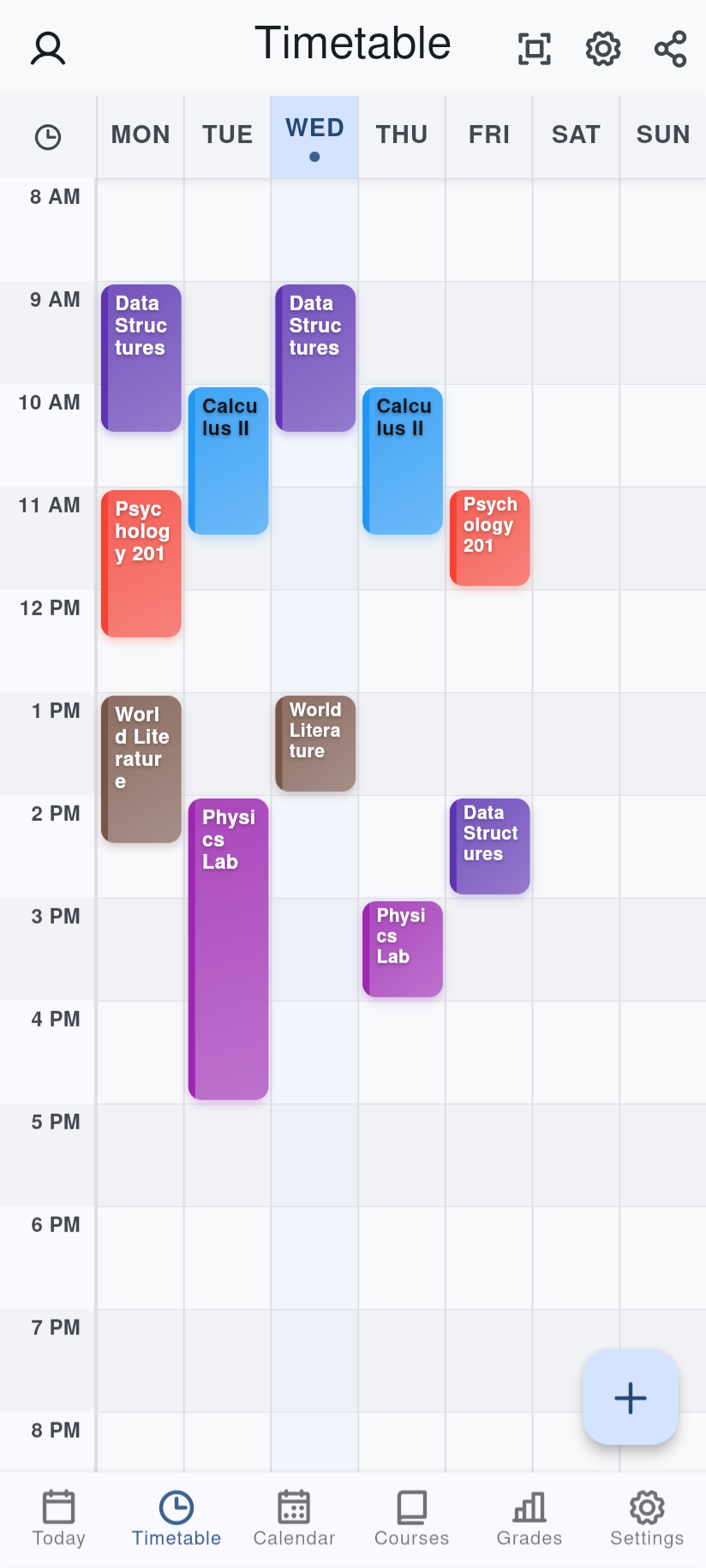
Conflict detection understands the pattern too. A Week A class and a Week B class occupying the same slot are not a clash and are not reported as one, while a class set to Every week conflicts with both. Without that, an alternating timetable produces a permanent list of false warnings that you quickly learn to ignore.
Setting one up
- Create your semester and set its start date.
- If your institution's Week A did not begin in the first week of term, set the week-pattern start date to the Monday it did.
- Add your classes as normal, leaving the pattern as Every week.
- Change only the classes that genuinely alternate to Week A or Week B.
- Check the current week against a printed timetable once. If every alternating class is on the wrong week, shift the anchor date by seven days.
Step five is worth doing deliberately. An inverted pattern is the one failure mode that looks plausible — everything is in the right slot, just on the wrong fortnight — and it is far easier to catch in week one than in week six.
Frequently asked questions
What is a Week A / Week B timetable?
A Week A / Week B timetable is a schedule that repeats over a fortnight instead of a single week, so the classes you have on a Monday in Week A differ from those on a Monday in Week B. Schools and universities use it when the curriculum needs more distinct periods than a five-day week provides — typically for laboratory sessions, practicals, electives and split-group tutorials. It is also called an alternating, biweekly, fortnightly or two-week rotating timetable.
Which app supports alternating week timetables?
Student Trove Study Planner supports them directly. Each class in your timetable is set to Every week, Week A or Week B, and the app works out which week any given date falls in from a semester anchor date, so the correct classes appear without you switching anything. It is free on Android, in the browser and on Windows. Most mainstream planner apps assume a seven-day repeating schedule and require a workaround instead.
How do I know whether this week is Week A or Week B?
It is determined by counting whole weeks from a fixed starting point. Pick the Monday your alternating pattern began, count how many complete weeks have passed since then, and an even count means Week A while an odd count means Week B. Study Planner does this arithmetic for you once you set the semester start date, or a separate week-pattern start date if your institution's Week A did not begin in the first week of term.
What if my Week A does not start in the first week of the semester?
This is common, particularly when term begins mid-week or with an orientation week that is not part of the teaching pattern. Study Planner lets you set a week-pattern start date separately from the semester start date, so the alternation is anchored to the week your institution actually calls Week A. Without that separation the entire pattern is inverted, which is the usual reason an alternating timetable shows the wrong classes.
Can a class appear in both Week A and Week B?
Yes. Classes set to Every week appear in both, which is how most timetables actually look — a core lecture running weekly alongside a practical that alternates. You only mark the classes that genuinely alternate, and conflict detection accounts for the pattern, so a Week A class and a Week B class in the same slot are correctly treated as not clashing.
How do school holidays affect the alternating pattern?
Institutions differ, and it matters. Most suspend the count over a break and resume where they left off, so a fortnight's holiday returns to the same letter it left on. Others count straight through the calendar. Check which your institution does, and if the pattern comes back inverted after a break, correct it by moving the week-pattern start date one week rather than editing every class.
Try it
Study Planner is free on Android, in the browser and on Windows, and works without an account. Alternating weeks, conflict detection, assignments, grades and attendance are all in the free version.